
- Why Automatic Rollback?
- Setting Up the Pipeline with CloudFormation
- Securely Connecting to Your Code Repository
- Integrating with Your SAM Application
- Seeing Automatic Rollback in Action!
- Key Takeaways
Deploying applications can be nerve-wracking, especially when a critical bug slips through and brings down your service. Manually rolling back under pressure isn’t fun for anyone. What if your deployment pipeline could automatically revert to the last known good state when things go wrong?
Good news! AWS CodePipeline V2 offers a built-in automatic rollback feature, and in this post, I’ll walk you through how I configured this crucial safety net using AWS CloudFormation and integrated it with an AWS SAM (Serverless Application Model) based application.
Why Automatic Rollback?
Before diving into the “how,” let’s quickly touch on the “why”:
- Reduced Downtime: Faster recovery means less impact on your users.
- Increased Confidence: Deploy more frequently, knowing you have an automated fallback.
- Less Manual Intervention: Frees up developer/DevOps time during stressful failure scenarios.
- Consistency: Ensures rollbacks are performed the same way every time.
Setting Up the Pipeline with CloudFormation
The core of this setup lies in defining the CodePipeline resource correctly using CloudFormation. I’ve created a reference template you can find and adapt in my GitHub repository:
https://github.com/pbkn/codepipeline-automatic-rollback
This template provisions the necessary CodePipeline, CodeBuild projects, and associated IAM roles.
Key Configuration Details:
There are two crucial parameters in the CloudFormation template within the AWS::CodePipeline::Pipeline resource definition that enable automatic rollback:
PipelineType: V2: Automatic rollback is only available for V2 pipelines. V1 pipelines do not support this feature. Ensure your pipeline definition explicitly sets this type.ExecutionMode: PARALLELorQUEUED: V2 pipelines require an execution mode to be set.QUEUEDis often a good default.TriggerConfigurationsforOnFailure: Within your deployment stage’s action (e.g., a CloudFormation deployment action), you need to configure a trigger. The key part is setting theResulttoROLLBACKunder theOnFailurecondition.
YAML
# Example snippet within your CloudFormation template's Pipeline resource
Properties:
  PipelineType: V2
  ExecutionMode: QUEUED # Or PARALLEL
  Stages:
    # ... Source Stage, Build Stage ...
    - Name: DeployStaging
      Actions:
        - Name: DeployCloudFormationStack
          ActionTypeId:
            Category: Deploy
            Owner: AWS
            Provider: CloudFormation
            Version: '1'
          Configuration:
            # ... your CloudFormation deployment configurations ...
            ActionMode: CREATE_UPDATE # or REPLACE_ON_FAILURE etc.
            StackName: !Ref YourApplicationStackName
            TemplatePath: BuildArtifact::template-output.yaml
            Capabilities: CAPABILITY_IAM,CAPABILITY_NAMED_IAM,CAPABILITY_AUTO_EXPAND
          InputArtifacts:
            - Name: BuildArtifact
          RunOrder: 1
          # --- THIS IS THE MAGIC ---
          TriggerConfigurations:
            - ProviderType: CloudFormation # Or relevant provider
              PushType: OnFailure
              Result: ROLLBACK # Instructs CodePipeline to rollback on failure
          # --- END MAGIC ---
# ... rest of your pipeline definition ...
(Note: The exact structure under TriggerConfigurations might vary slightly depending on the specific action provider, but the concept of OnFailure: ROLLBACK is the key).
Securely Connecting to Your Code Repository
For the pipeline to fetch your code, it needs access to your source repository (like GitHub). Instead of hardcoding credentials, I set up a secure connection behind the scenes. This typically involves:
- Authenticating AWS with your Git provider (e.g., using AWS CodeStar Connections).
- Storing the connection ARN or any necessary tokens securely, often in AWS Systems Manager (SSM) Parameter Store.
- Referencing this secure parameter from the CloudFormation template when defining the source stage of the pipeline.
This keeps your credentials safe and manageable. The codepipeline-automatic-rollback repo linked above uses this approach, referencing an SSM parameter for the CodeStar Connection ARN.

Integrating with Your SAM Application
Now, how does your SAM application fit into this? The CodePipeline needs to build and package your SAM application before deploying it. This is typically handled in the CodeBuild stage defined in your pipeline’s CloudFormation template.
Your SAM application’s repository needs a buildspec.yml file. This file tells CodeBuild how to:
- Install dependencies.
- Run tests (optional but recommended).
- Use the SAM CLI to build and package your application (
sam buildandsam package). - Output the necessary artifacts (like the packaged CloudFormation template and zipped code) for the deployment stage.
(For a more detailed look at structuring SAM commands within CodeBuild for CI/CD pipelines, you might find my post on the AWS Community Blog helpful: [SAM Builds in CodePipeline: A buildspec.yml Deep Dive]). Make sure your CodeBuild project definition in the pipeline’s CloudFormation passes the necessary environment variables (like the artifact bucket name) to buildspec.yml.
Seeing Automatic Rollback in Action!
Theory is great, but seeing it work is better.
- Initial Success: I first deployed the pipeline with working code in my SAM application repository. The pipeline ran successfully, deploying the CloudFormation stack for the application.
- Introducing an Error: Next, I intentionally pushed a change to the SAM application’s code that would cause the CloudFormation deployment to fail (e.g., referencing a non-existent resource, invalid syntax in the SAM template, or code causing a Lambda deployment hook to fail).
- Triggering the Pipeline: This new commit automatically triggered the CodePipeline.
- Failure and Rollback: The pipeline proceeded through the source stage, but the ‘Build Staging’ action failed as expected due to the bad template. Because we configured
OnFailure: ROLLBACK, CodePipeline didn’t just stop; it initiated a rollback to the last known stable state commit.
Here are a couple of screenshots showing the pipeline execution history – notice the failed deployment stage followed by the successful rollback:
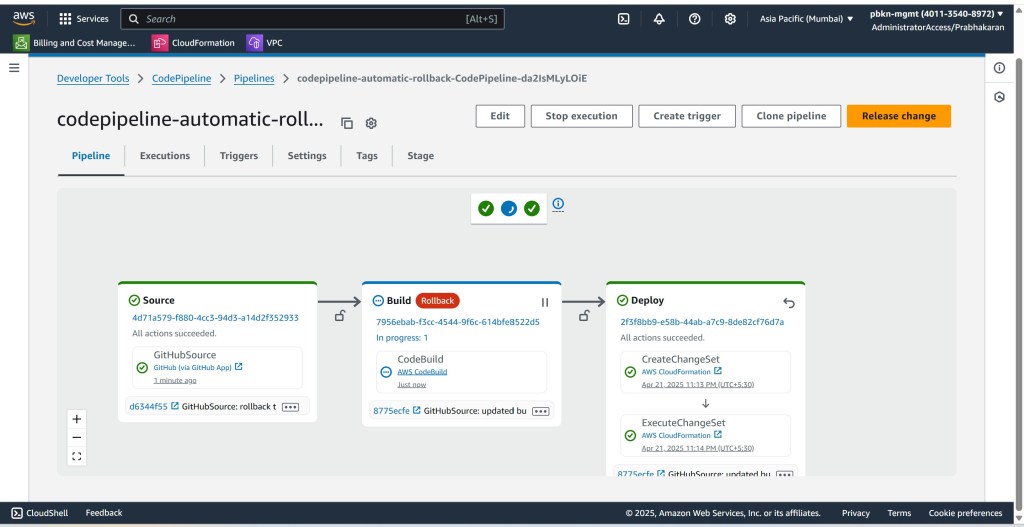

Success! The pipeline automatically protected the environment from the faulty deployment.
Key Takeaways
- Use Pipeline V2: It’s mandatory for automatic rollback.
- Configure
OnFailure: ROLLBACK: Set this trigger on your deployment action(s). - Leverage CloudFormation: Define your pipeline as code for repeatability.
- Secure Connections: Use CodeStar Connections and SSM Parameter Store for repository access.
- Integrate SAM Build: Use
buildspec.ymlwithsam buildandsam packagein CodeBuild.
Implementing automatic rollbacks adds a significant layer of resilience to your CI/CD process. It takes a bit of setup using CloudFormation, but the peace of mind and potential time saved during deployment failures are well worth the effort.
Check out the GitHub repo to get started, and let me know in the comments if you have any questions or experiences to share!
 Why Surf Swim
Leave a comment