
- Viewing Your Deployed Stack
- Comparing Application Composer and CloudFormation Designer
- Overcoming Visualization Limitations
- Detailed Component View
- Pre-Deployment Visualization
- Why Visualize?
- Conclusion
AWS has recently made a significant shift in its visualization tools for CloudFormation and SAM templates. Instead of the “CloudFormation Designer,” AWS Application Composer has become the default choice. Let’s explore how to use this modern tool effectively.
Viewing Your Deployed Stack
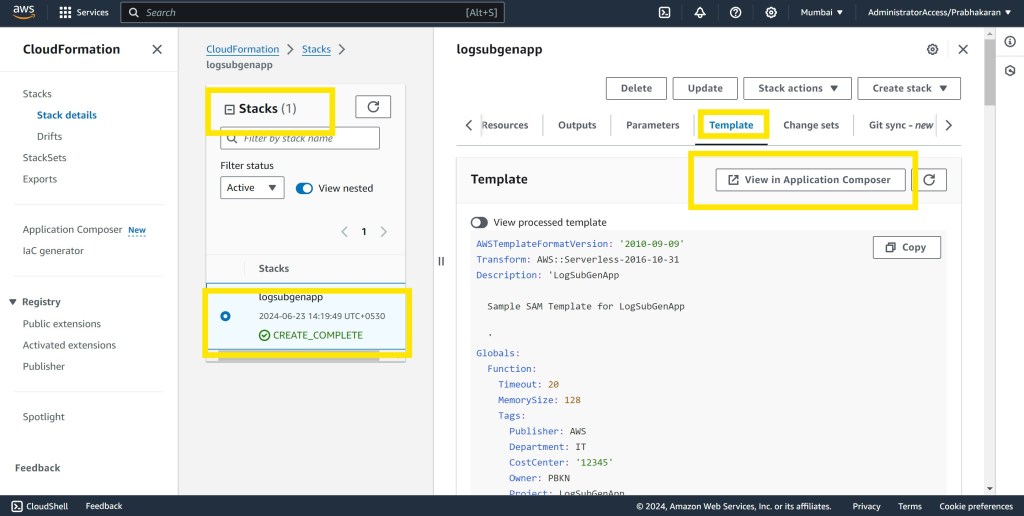
When you navigate to the “template” tab of an already deployed CloudFormation stack, you can click on “View in Application Composer.”
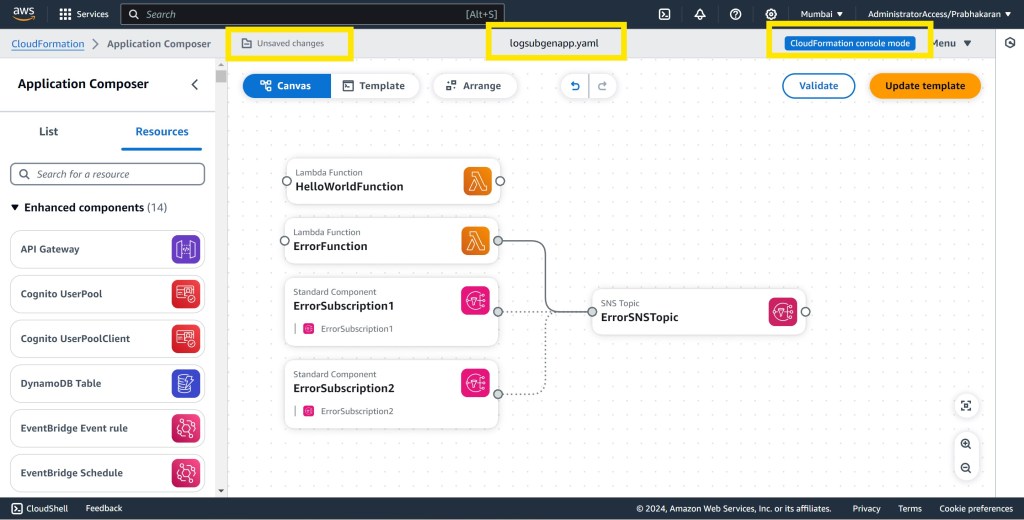
This allows you to visualize your SAM/CloudFormation script in a more modern interface. Note that the label “CloudFormation console mode” appears in the top right corner, indicating that changes are directly linked to an existing stack.
Comparing Application Composer and CloudFormation Designer
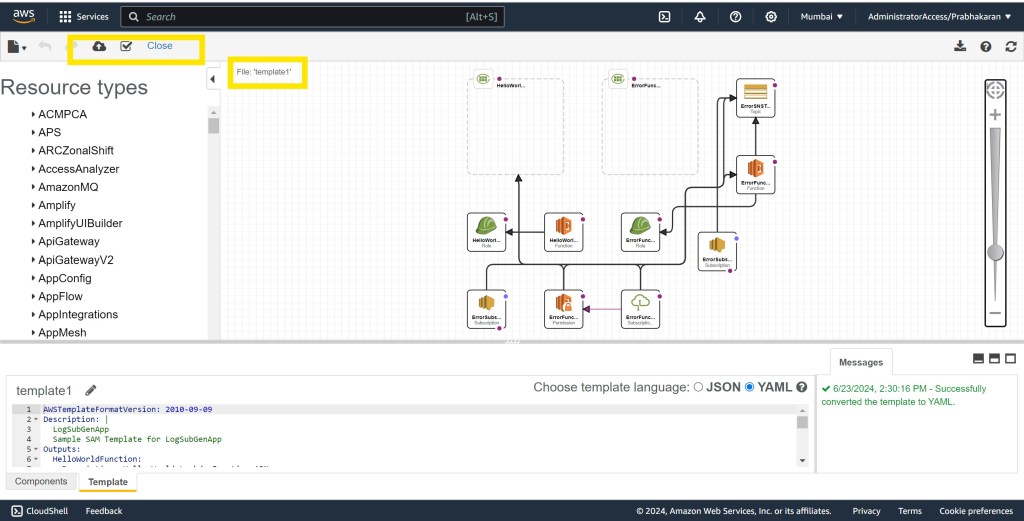
You’ll notice that Application Composer visualizes fewer components for a SAM template compared to CloudFormation Designer. This happens because Application Composer displays the untransformed SAM template directly on the canvas.

Overcoming Visualization Limitations
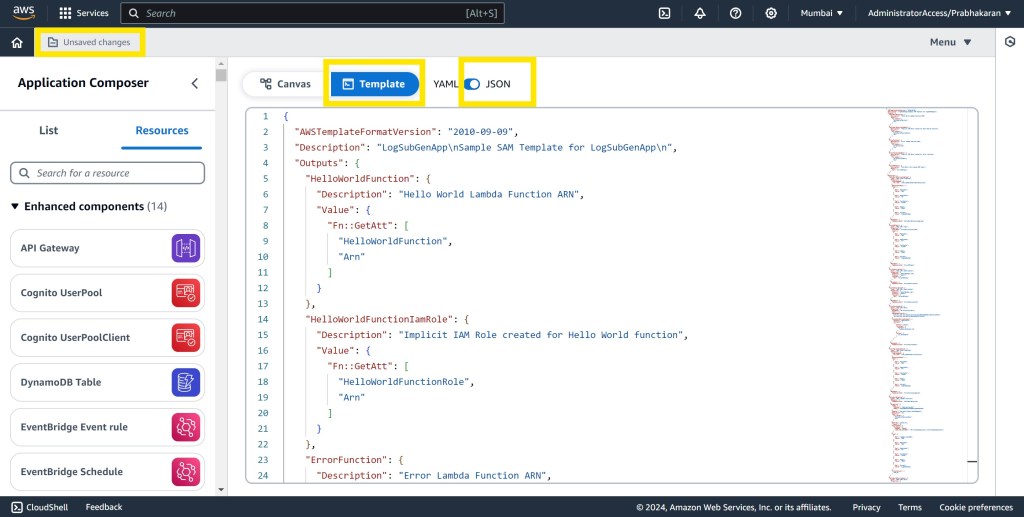
To see all components as you would in CloudFormation Designer, you need to use the transformed SAM template. If the stack is already deployed, toggle the “View processed template” button to get the transformed SAM template.
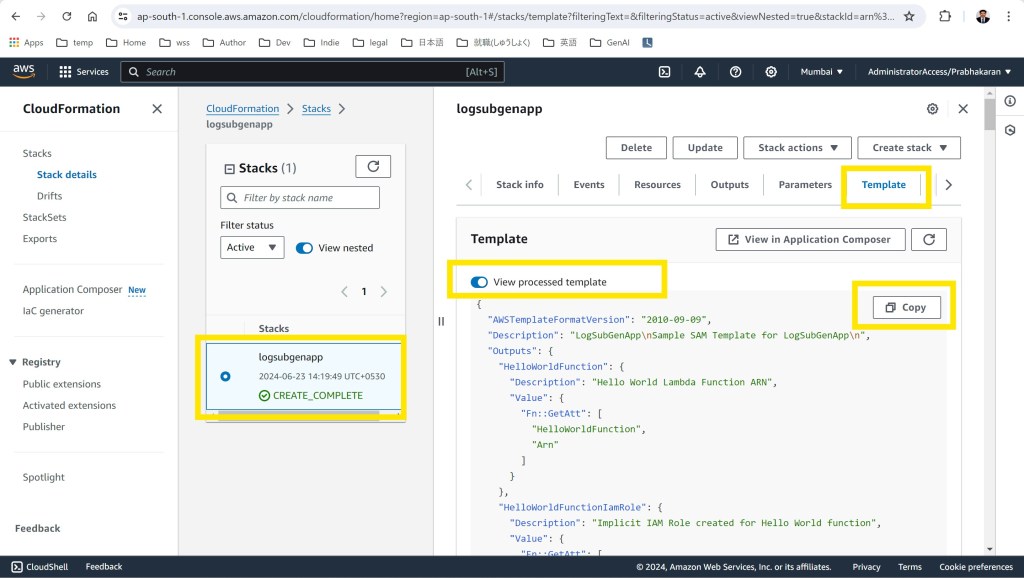
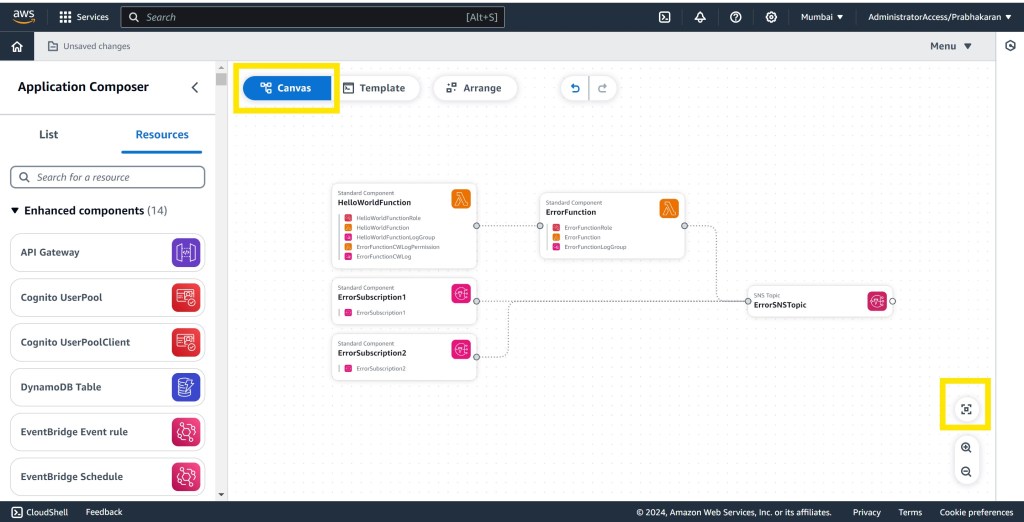
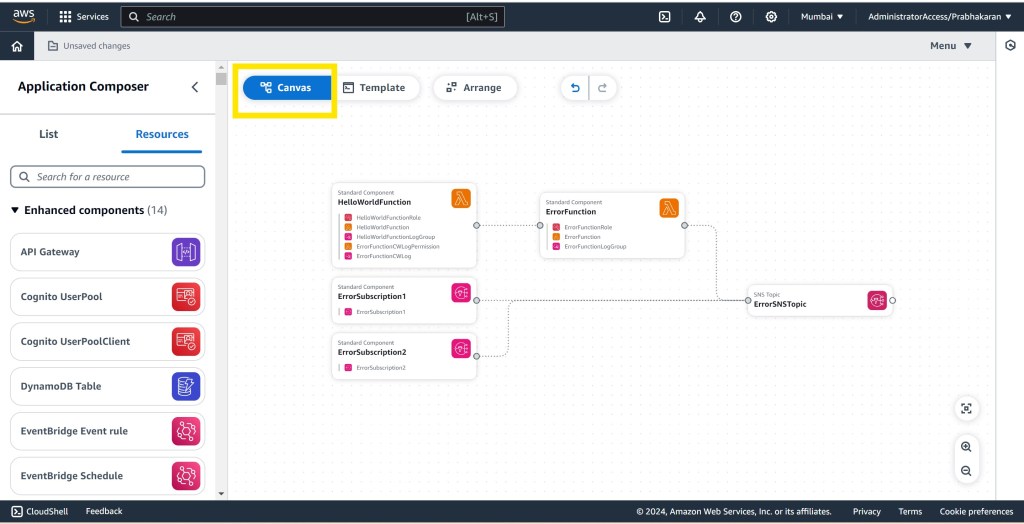
Then, paste this template into a new Application Composer canvas in the “Template” tab with the “JSON” option enabled. This will visualize your SAM template with all the components, just like in CloudFormation Designer but with a more modern interface.
Detailed Component View
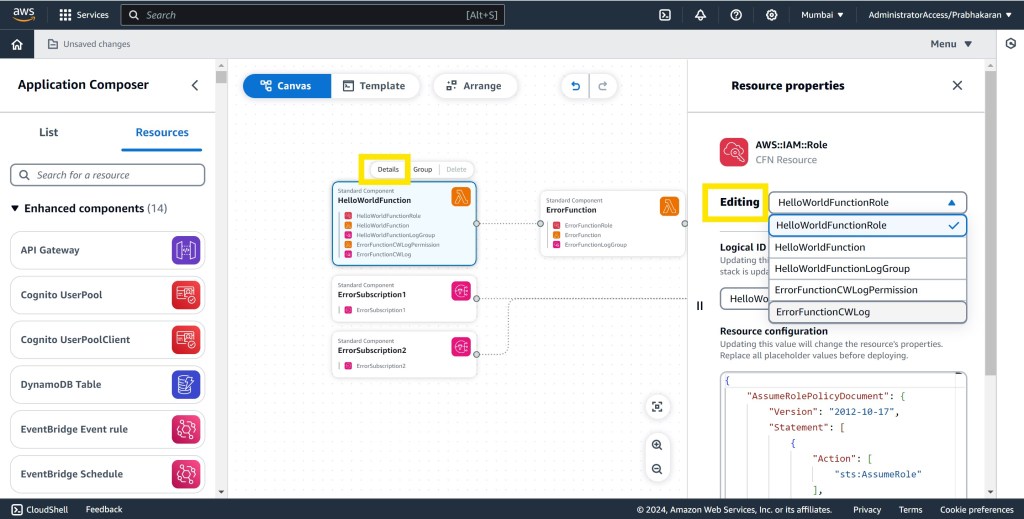
You can click on individual components to view detailed resources attached to them, such as roles, policies, and permissions.
Pre-Deployment Visualization
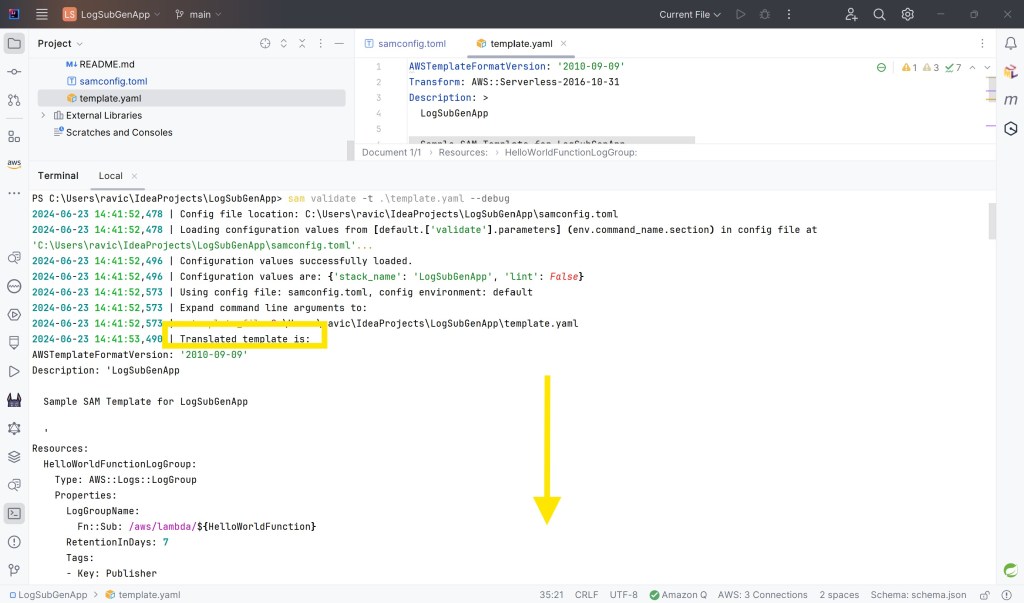
If you want to visualize the template before deployment, transform the SAM template locally using SAM CLI. First, ensure your “samconfig.toml” file has the “[default.validate.parameters] lint = true” property set to “false”. If this file or property doesn’t exist, you can skip this step.

Run the following command in your IDE or terminal to get the transformed SAM template:
sam validate -t .\template.yaml --debug
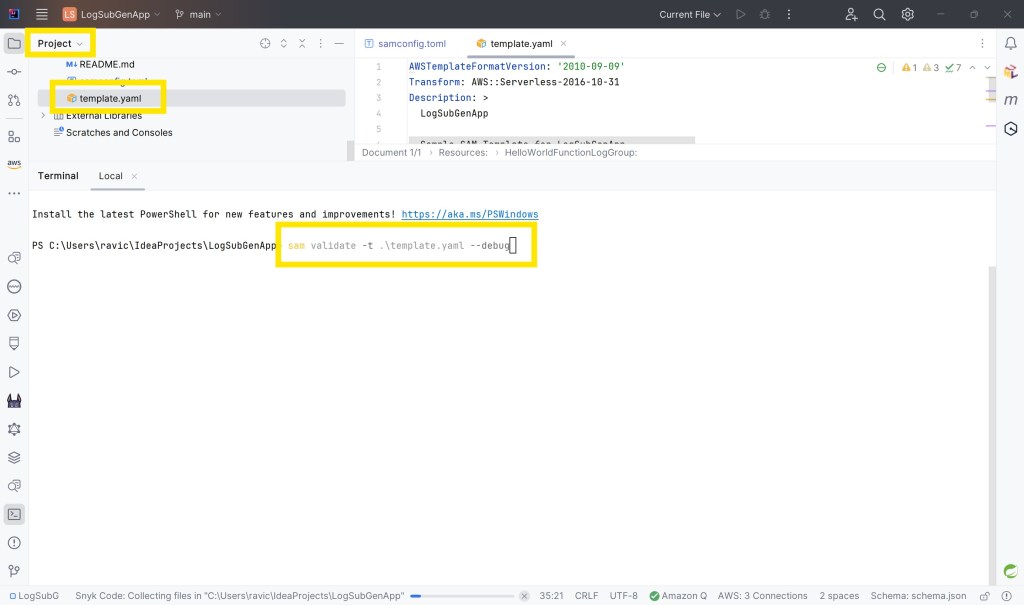
Copy the transformed SAM template and paste it into your Application Composer canvas. This allows you to visualize the detailed architecture before deployment.
Why Visualize?
This approach is particularly valuable when dealing with complex, multi-module applications or legacy systems. Visualizing a lengthy CloudFormation or SAM template provides invaluable insights into your application’s architecture.

Conclusion
AWS Application Composer offers a powerful and intuitive way to understand your infrastructure designs. By leveraging the transformed SAM template, you can unlock its full potential, even for large and complex deployments.
 Why Surf Swim
Leave a comment