
Hello there everyone,
This week we are going to install Ubuntu OS in Windows 10/8/8.1 OS, don’t worry as usual you have the step-by-step guide below…
Step 1 : Download Virtual box download link
Step 2 : Install Virtual box as shown below
Step 3 : Download Ubuntu OS go to download page
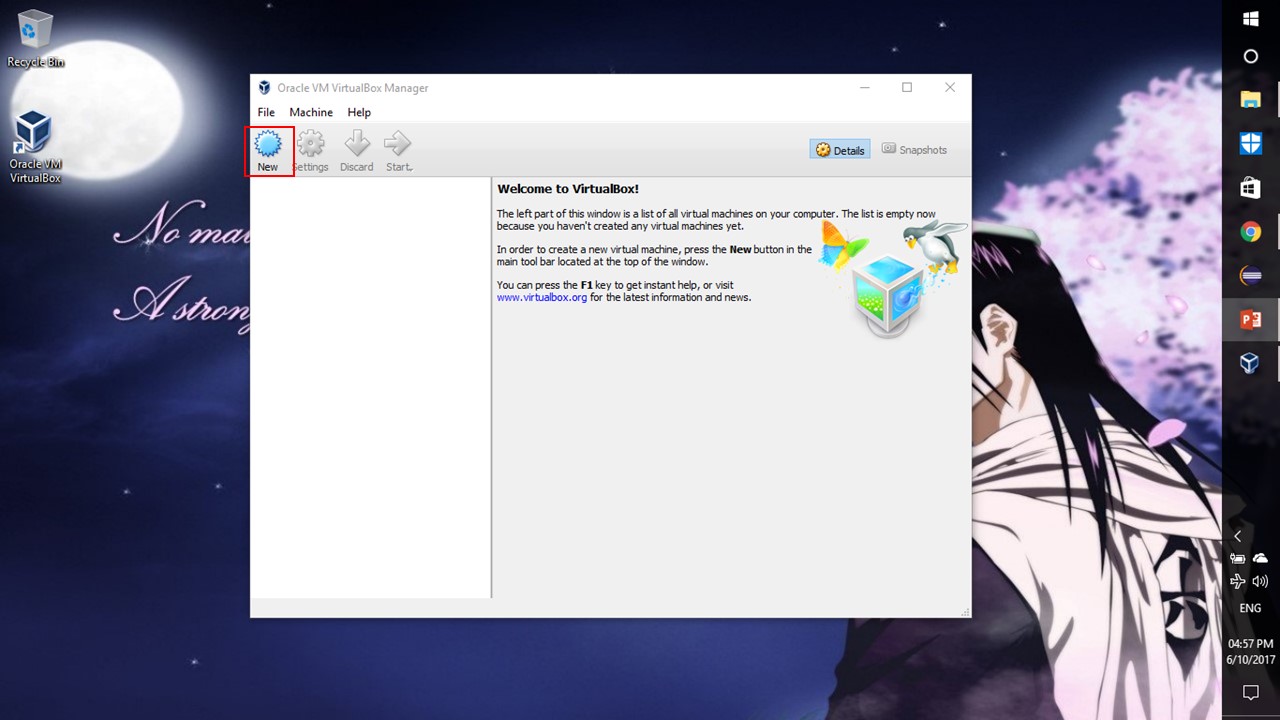
Step 4 : Now open Virtual box and click New
Step 5 : Select Linux as TYPE and Ubuntu as VERSION
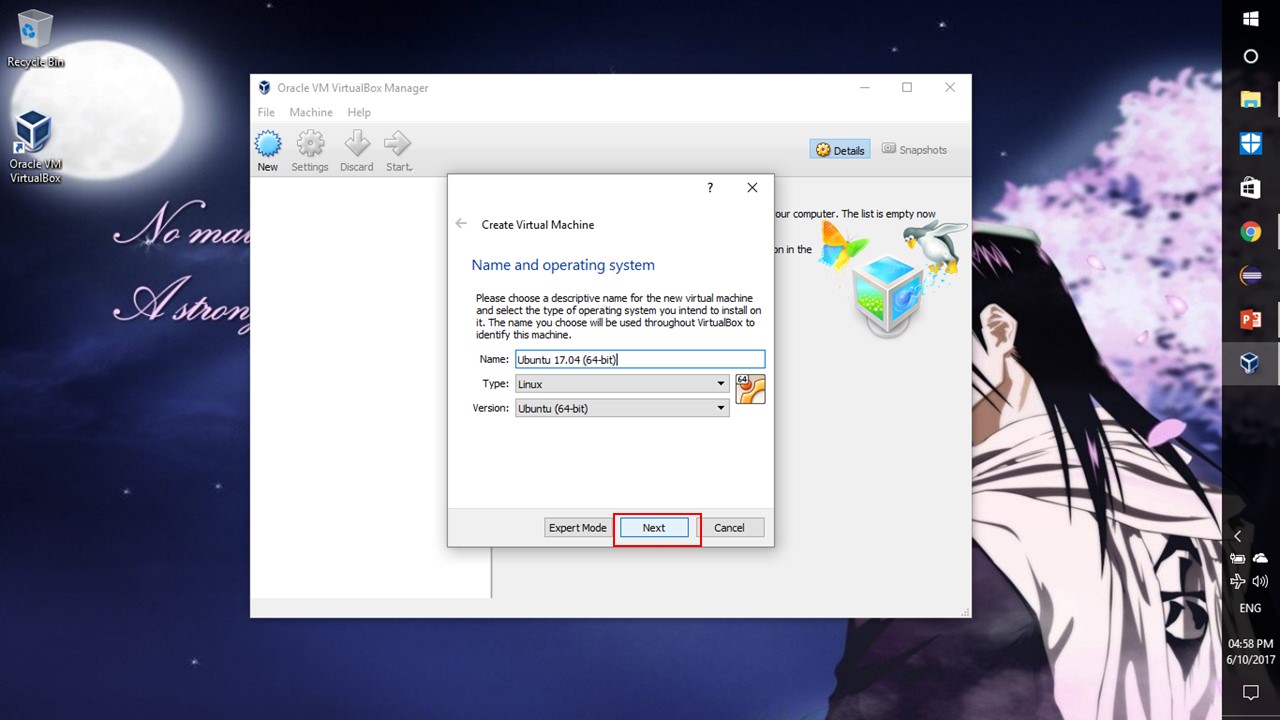
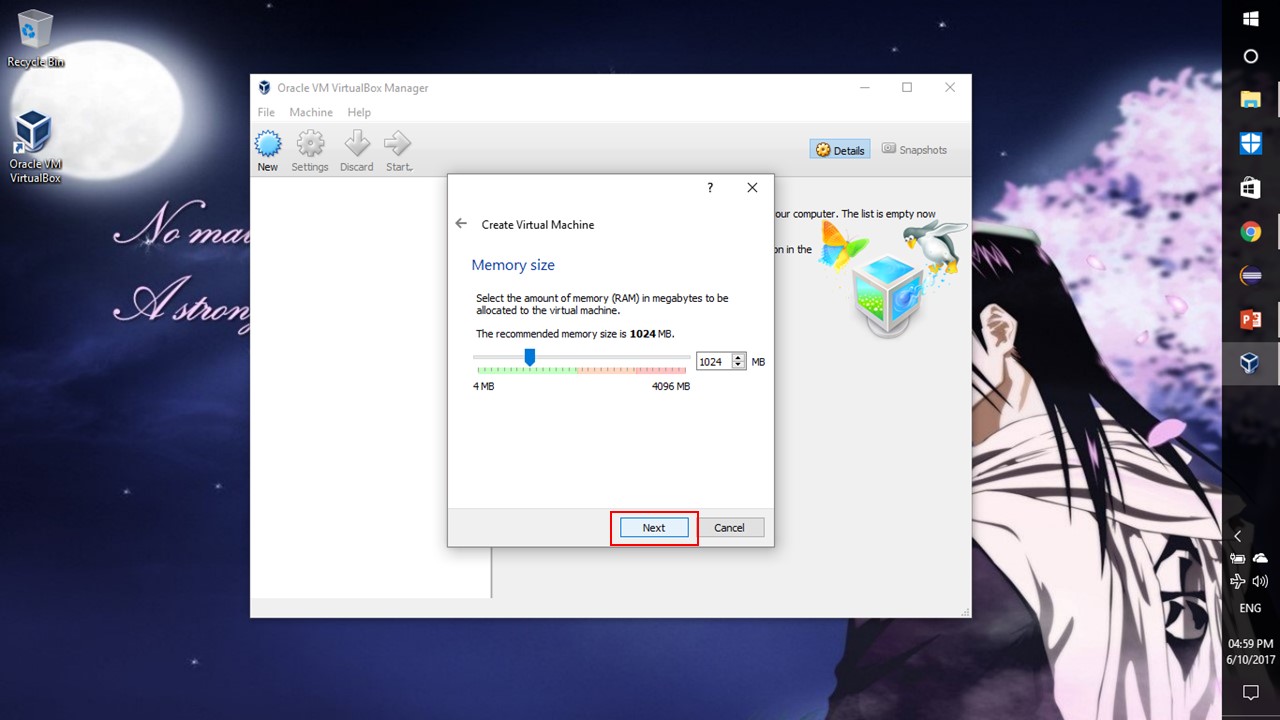
Step 6 : Click Next
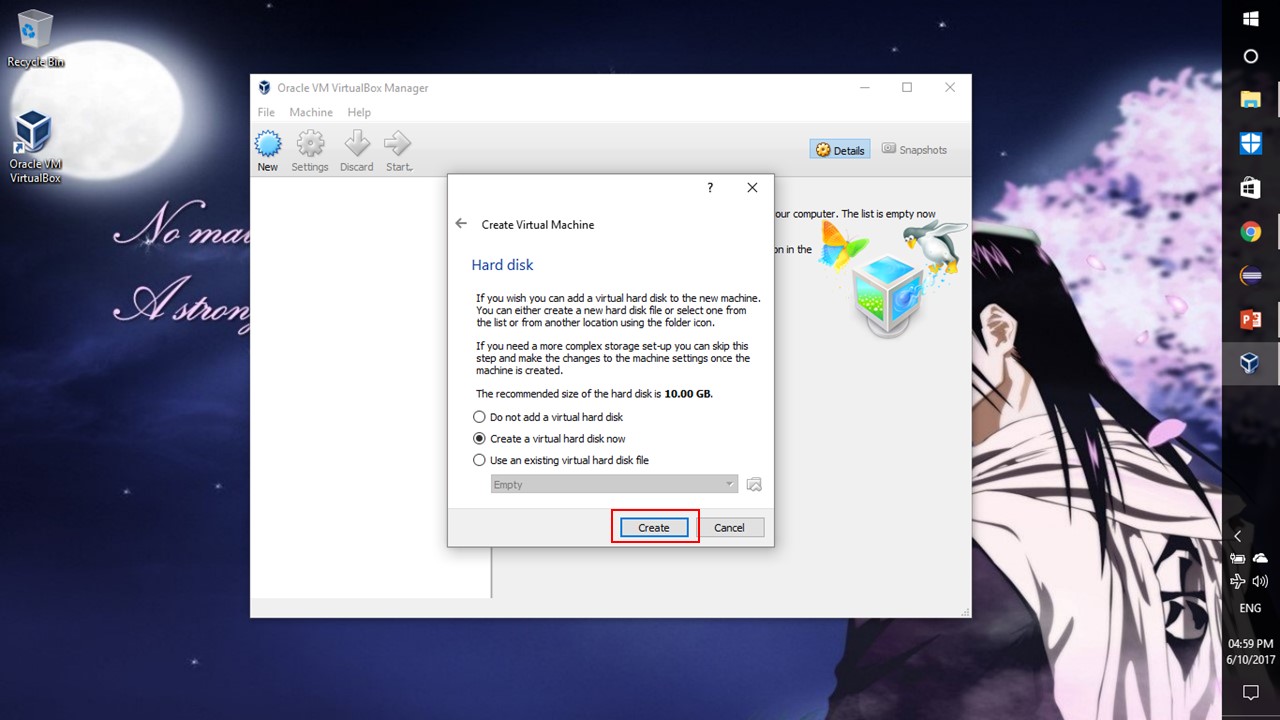
Step 7 : Choose Create a virtual hard disk
Step 8 : Choose VDI
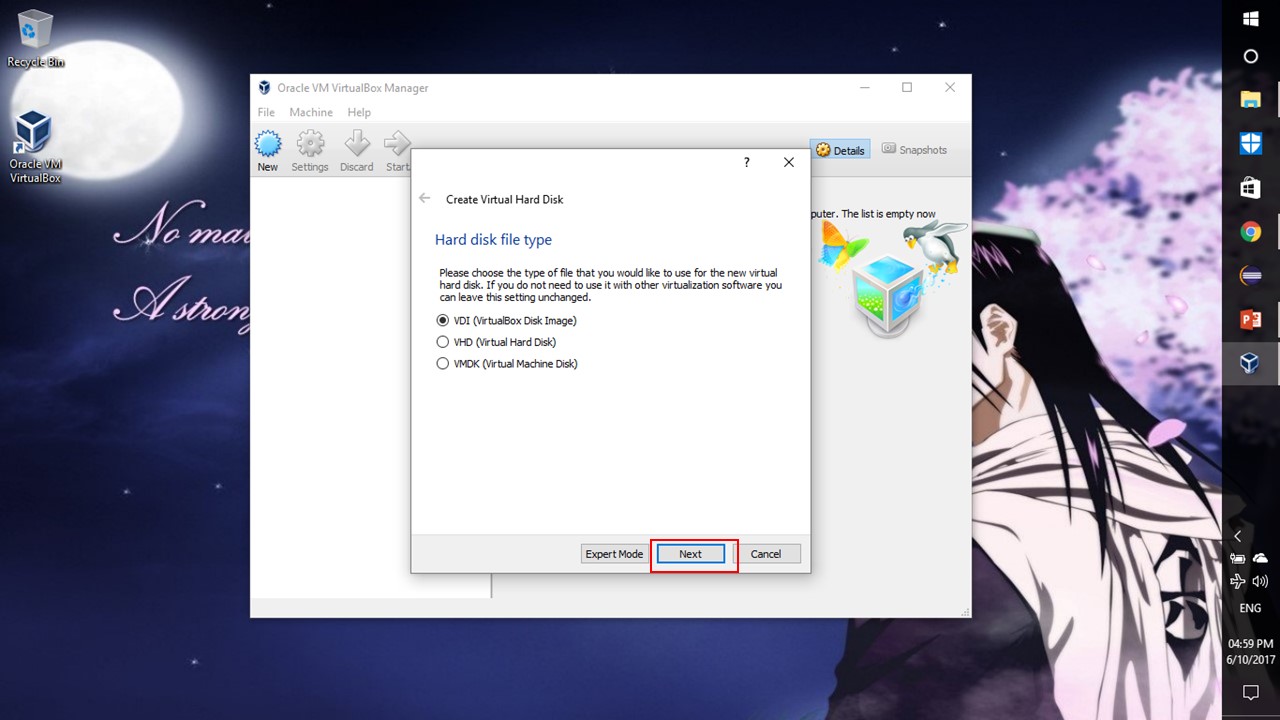
Step 9 : Choose Fixed size
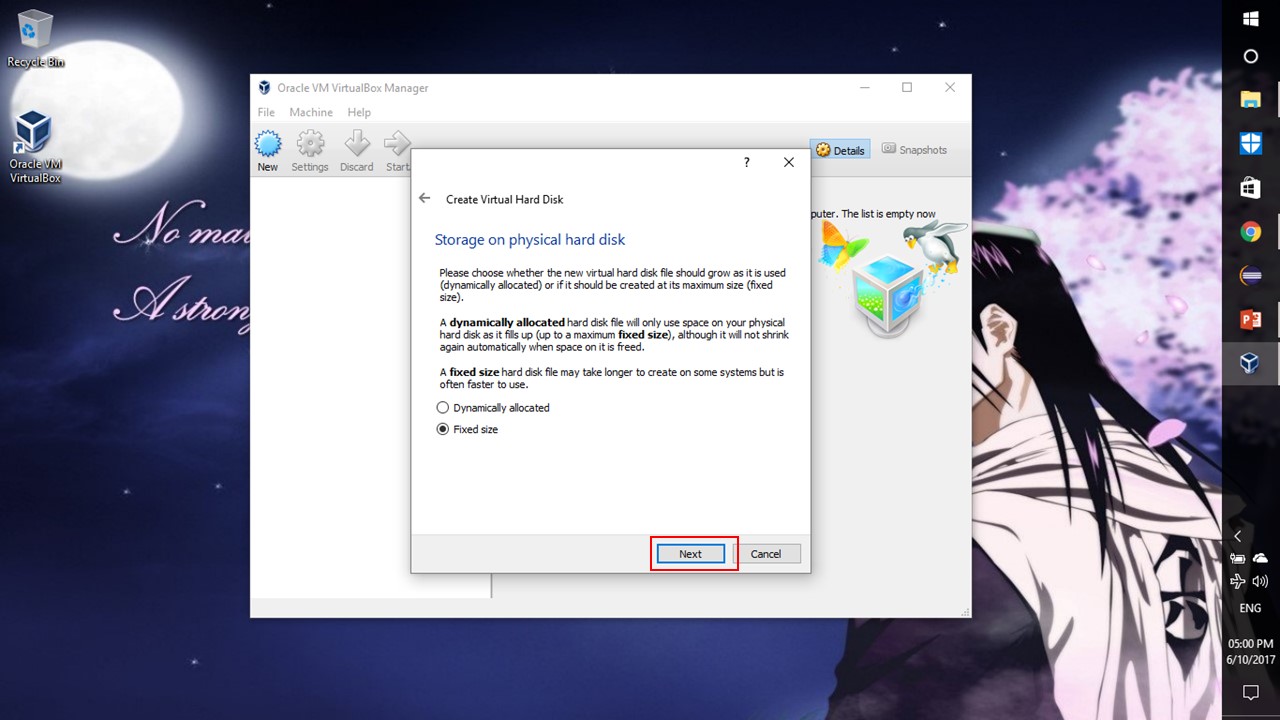
Step 10 : Click Create
Step 11 : Now go to Settings
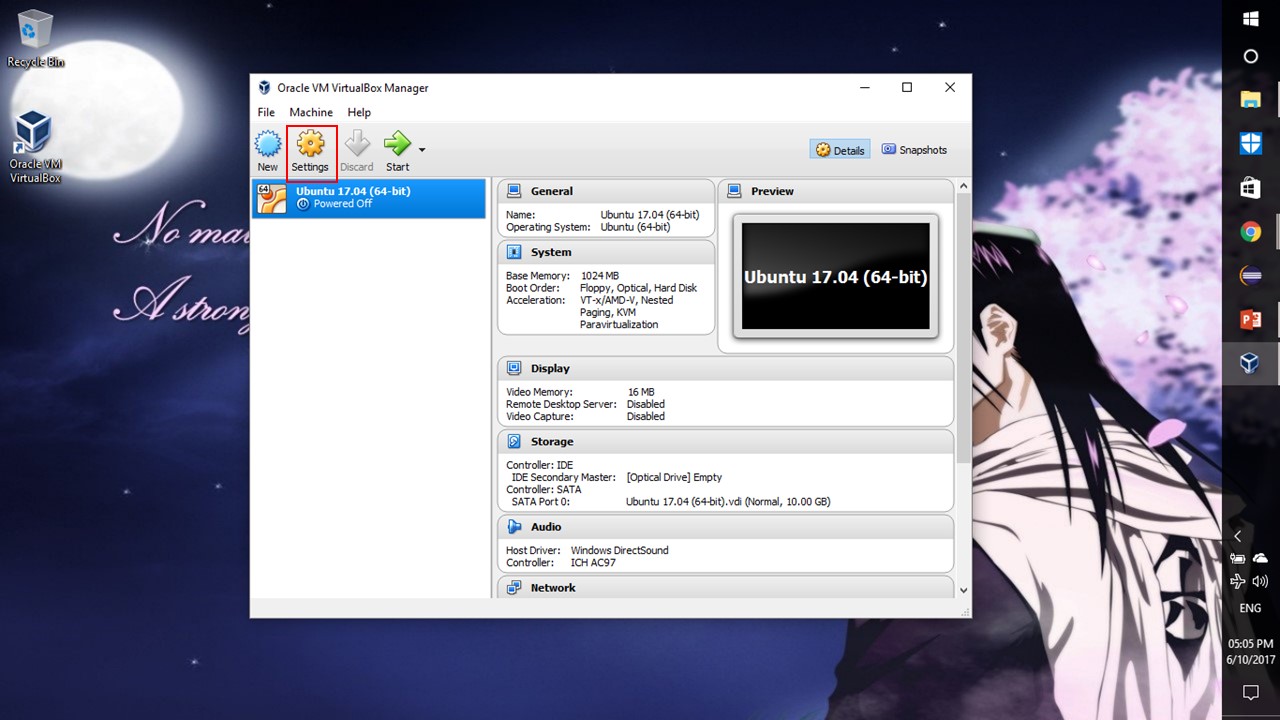
Step 12 : Go to Storage and click Choose Virtual Optical Disk File as shown
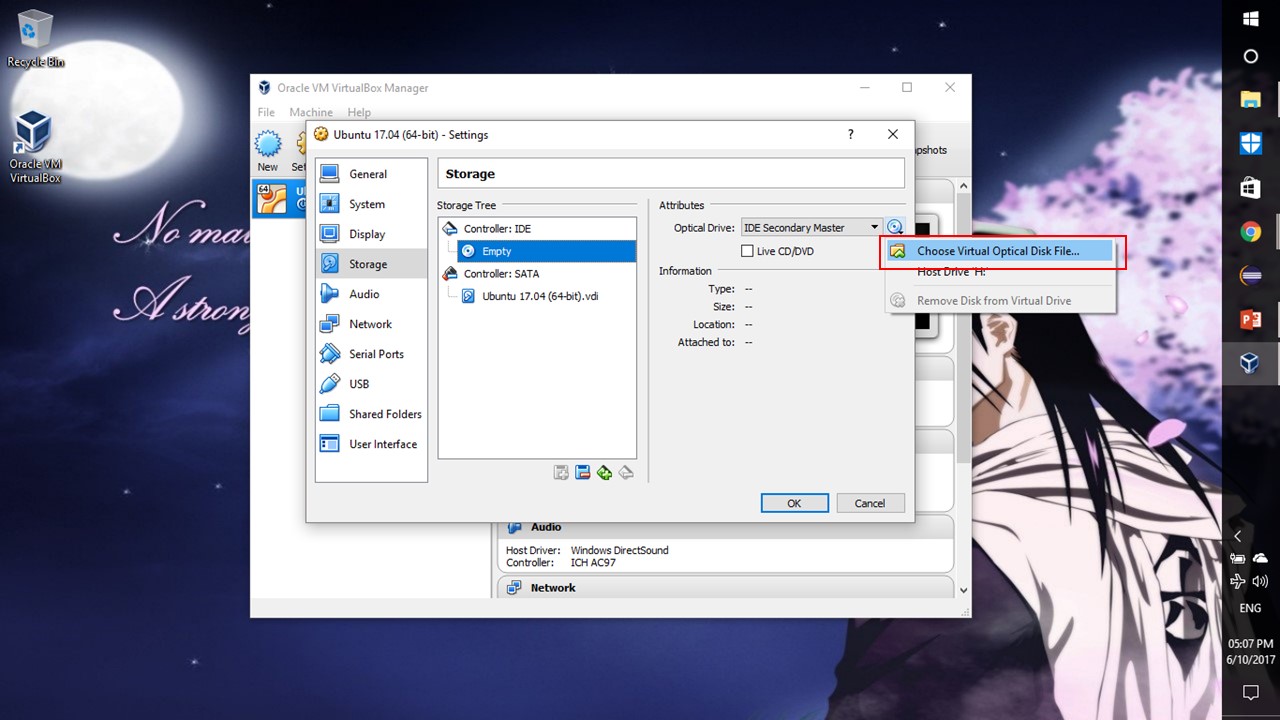
Step 13 : Select the Ubuntu OS file which you’ve downloaded earlier & click OK
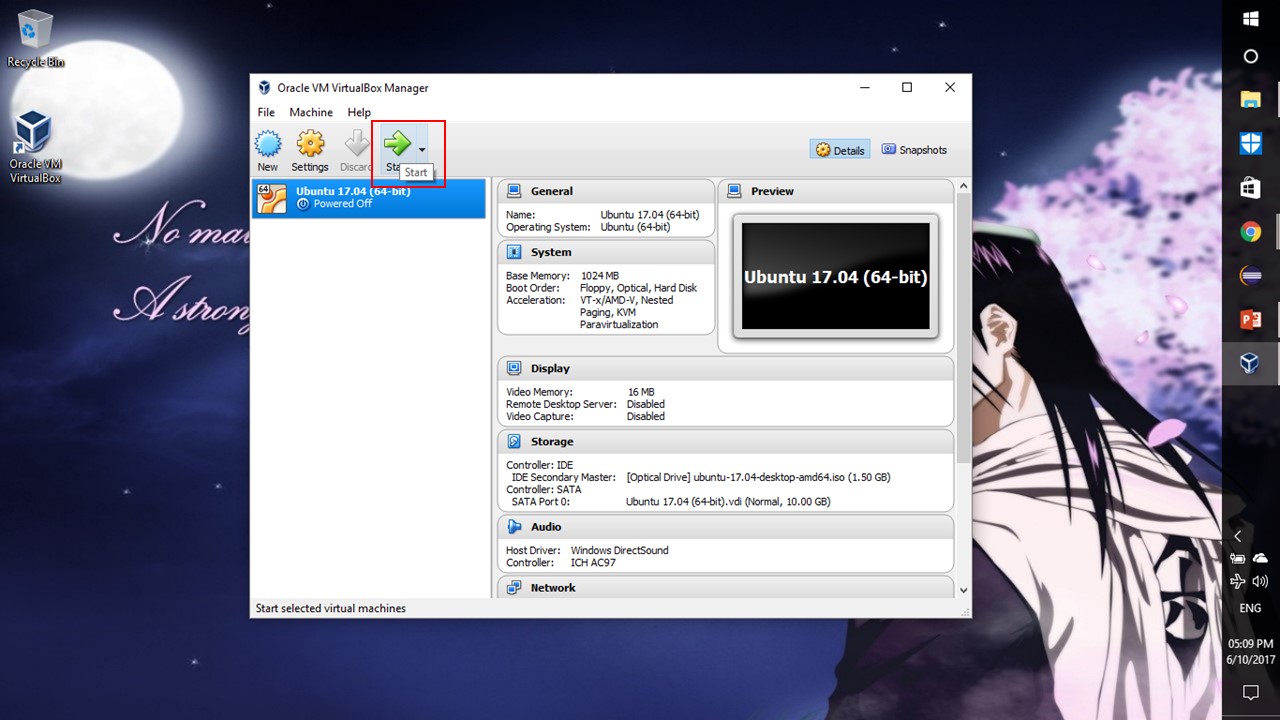
Step 14 : Now click START
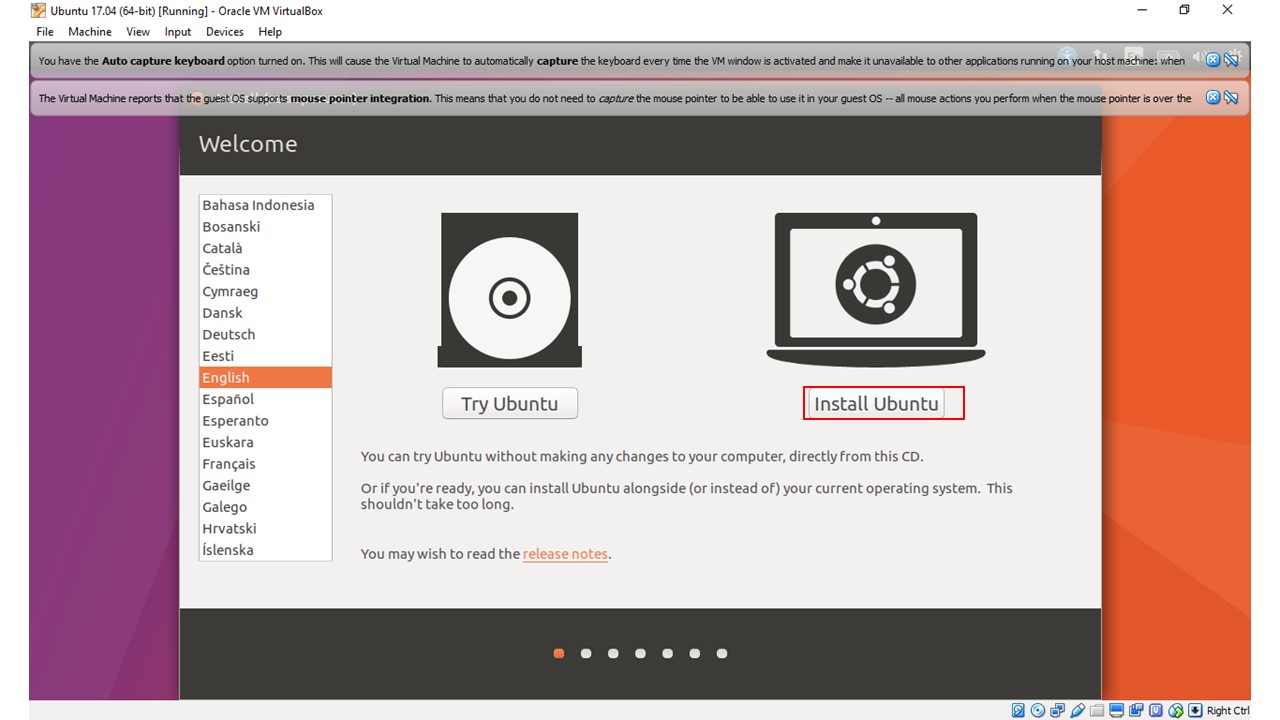
Step 15 : Click Install Ubuntu
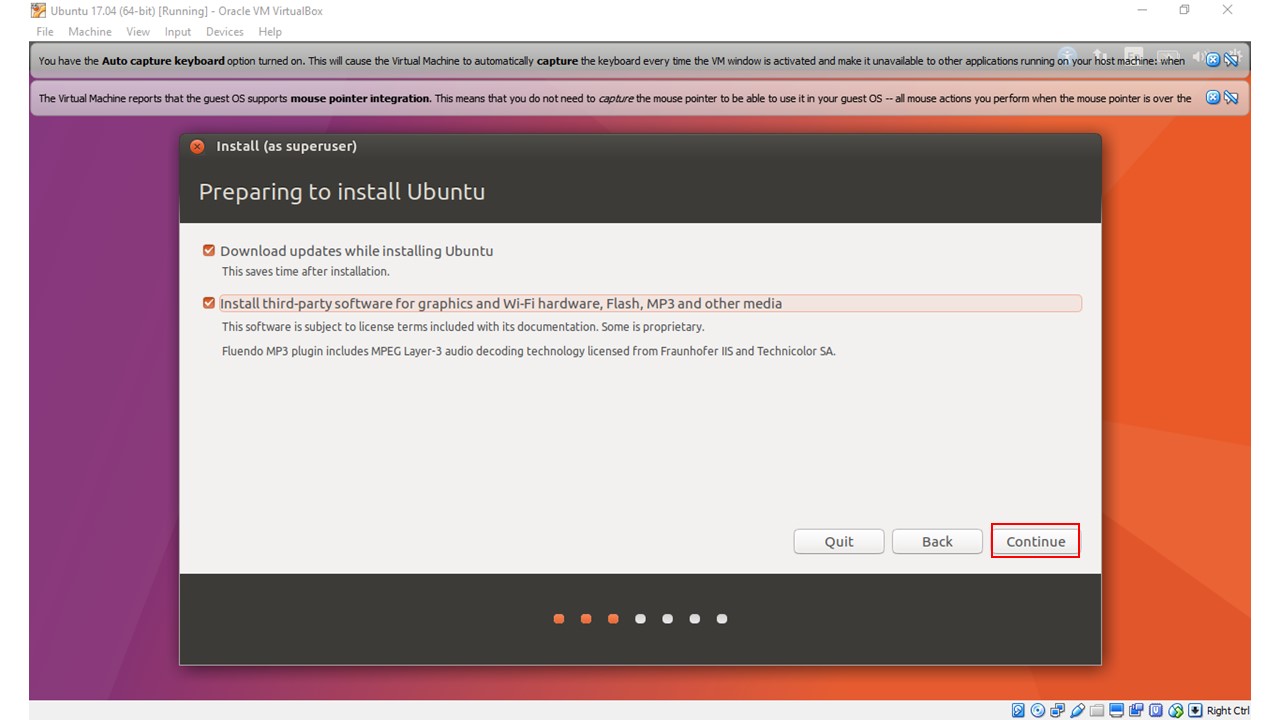
Step 16 : Check all boxes and click CONTINUE
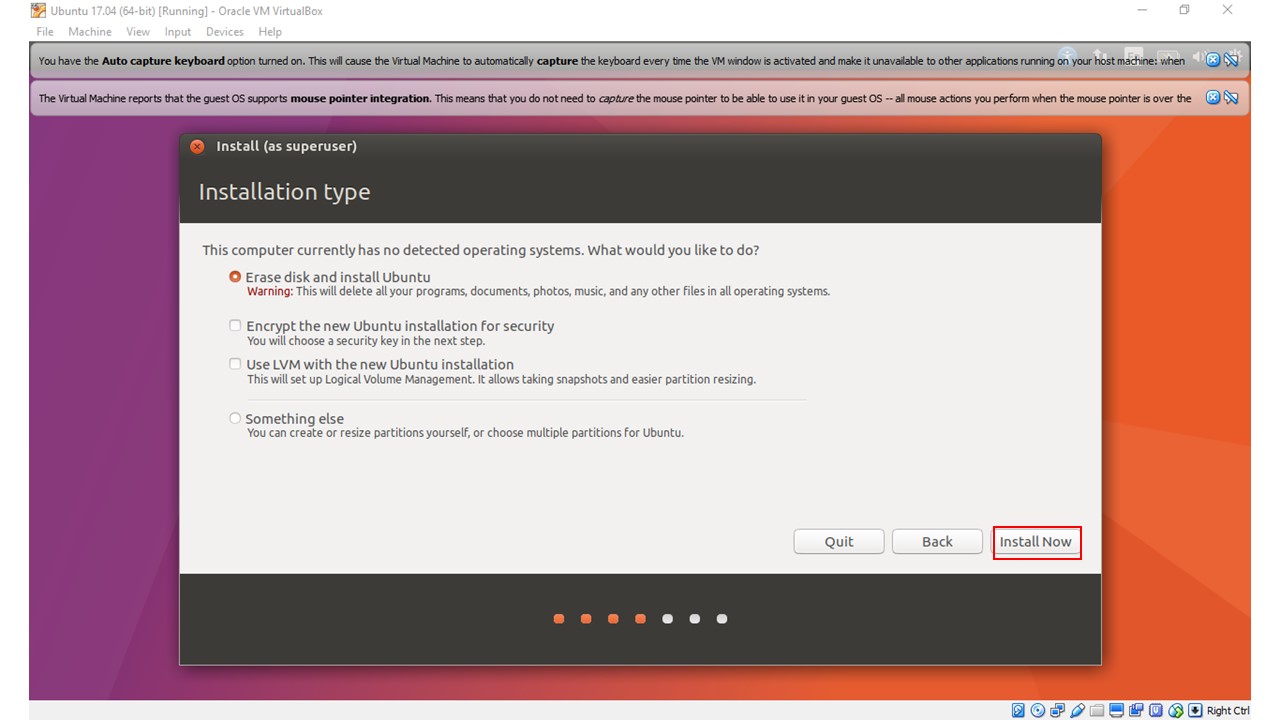
Step 17 : Choose Erase Disk and click INSTALL NOW
Step 18 : Click Continue
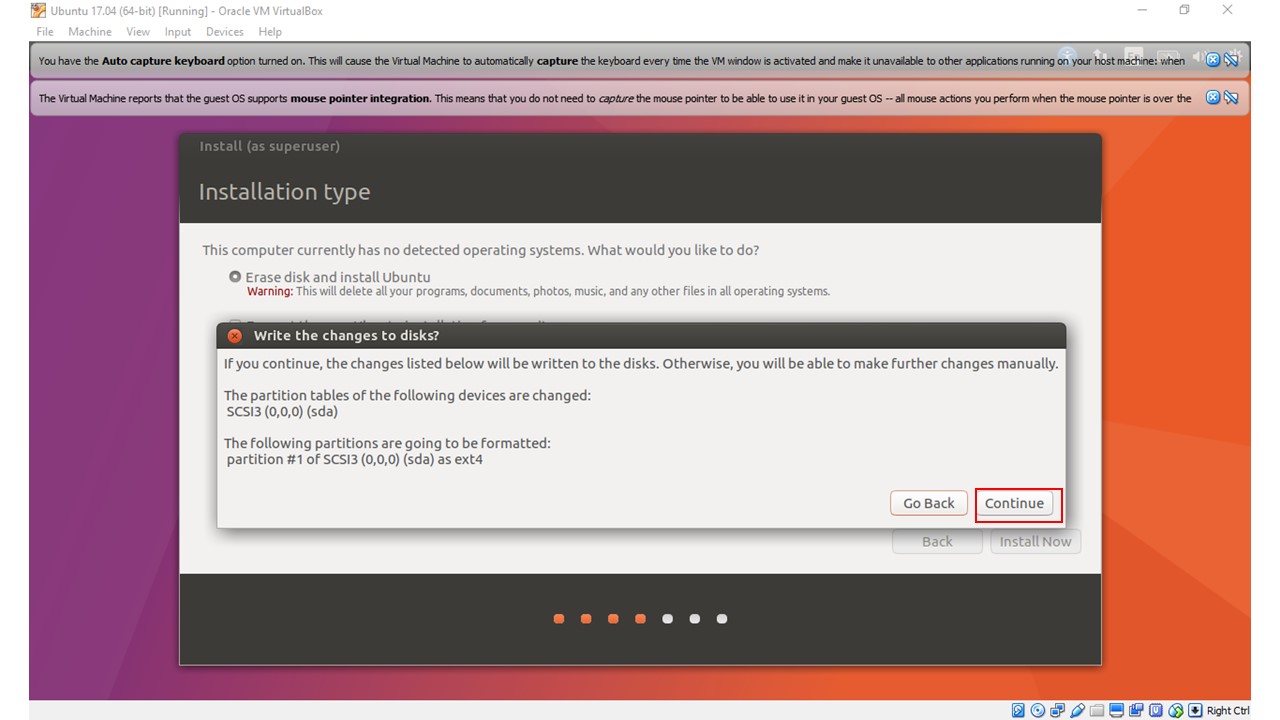
Step 19 : Set password & username and click Continue
Step 20 : Click RESTART NOW & close the window
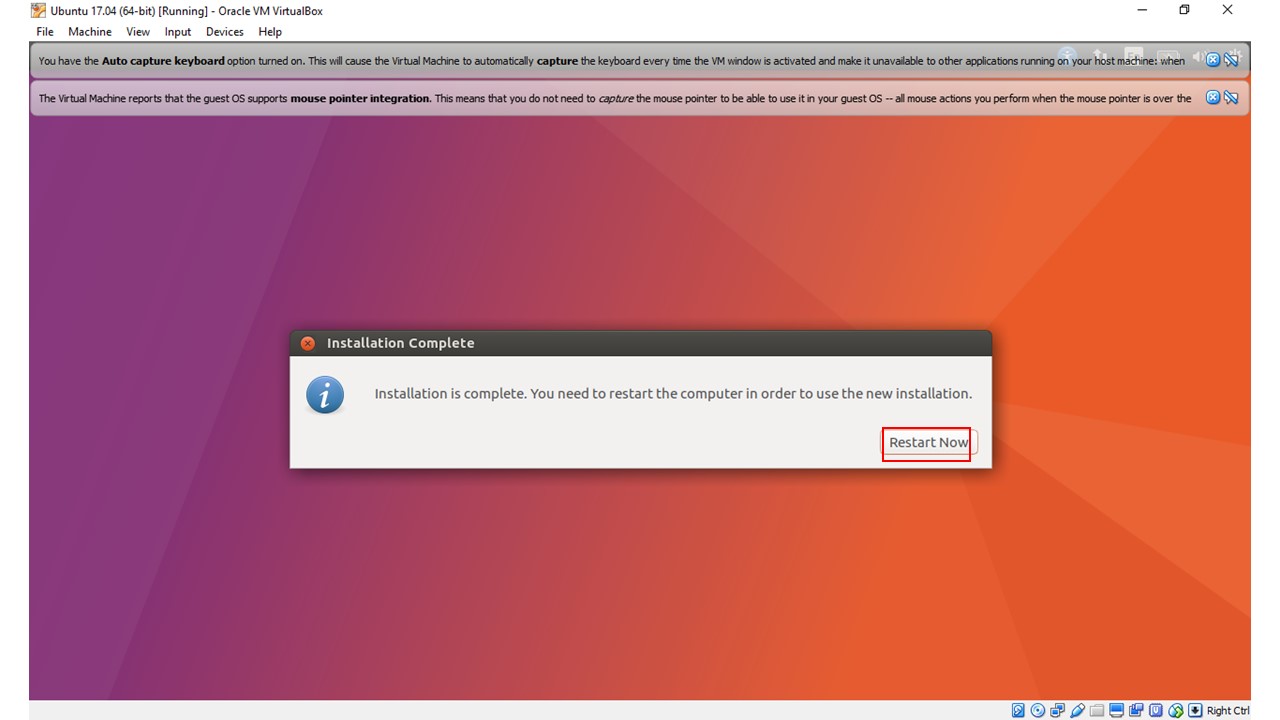
Step 21 : Now again click START in the virtual box and log in to your UBUNTU OS
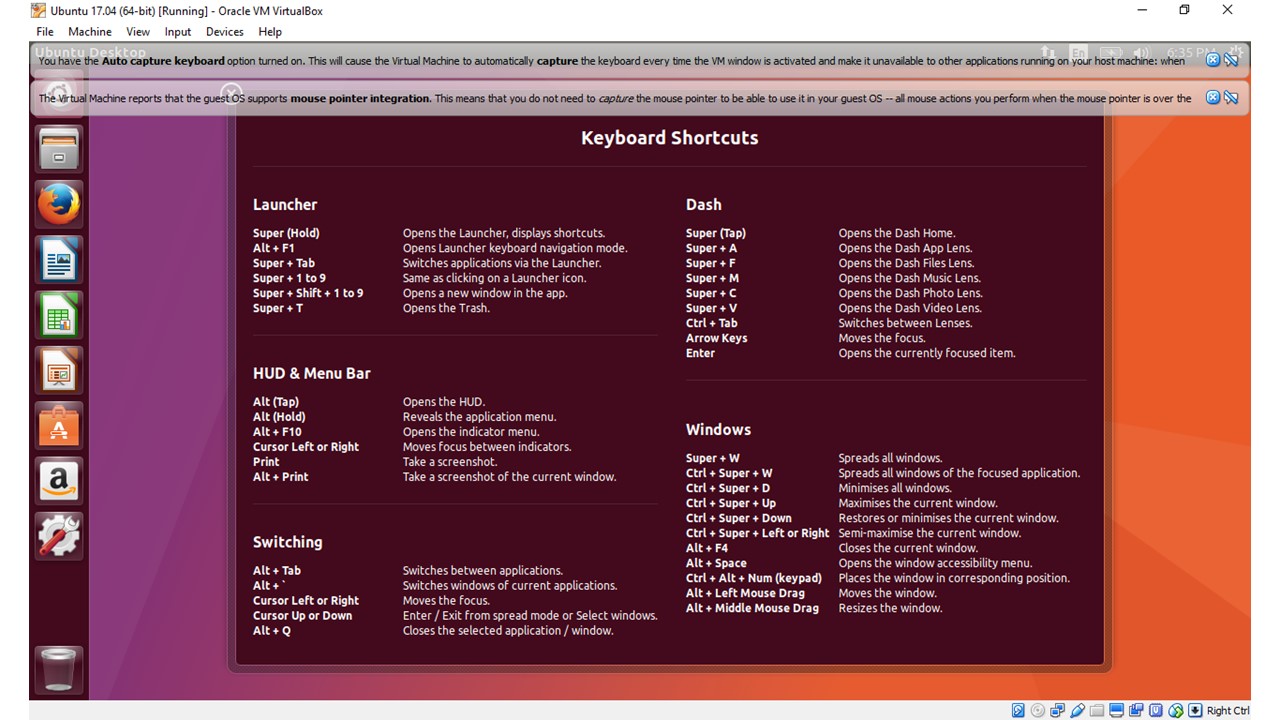
Step 22 : Ta-da, you’ve successfully installed UBUNTU in your WINDOWS
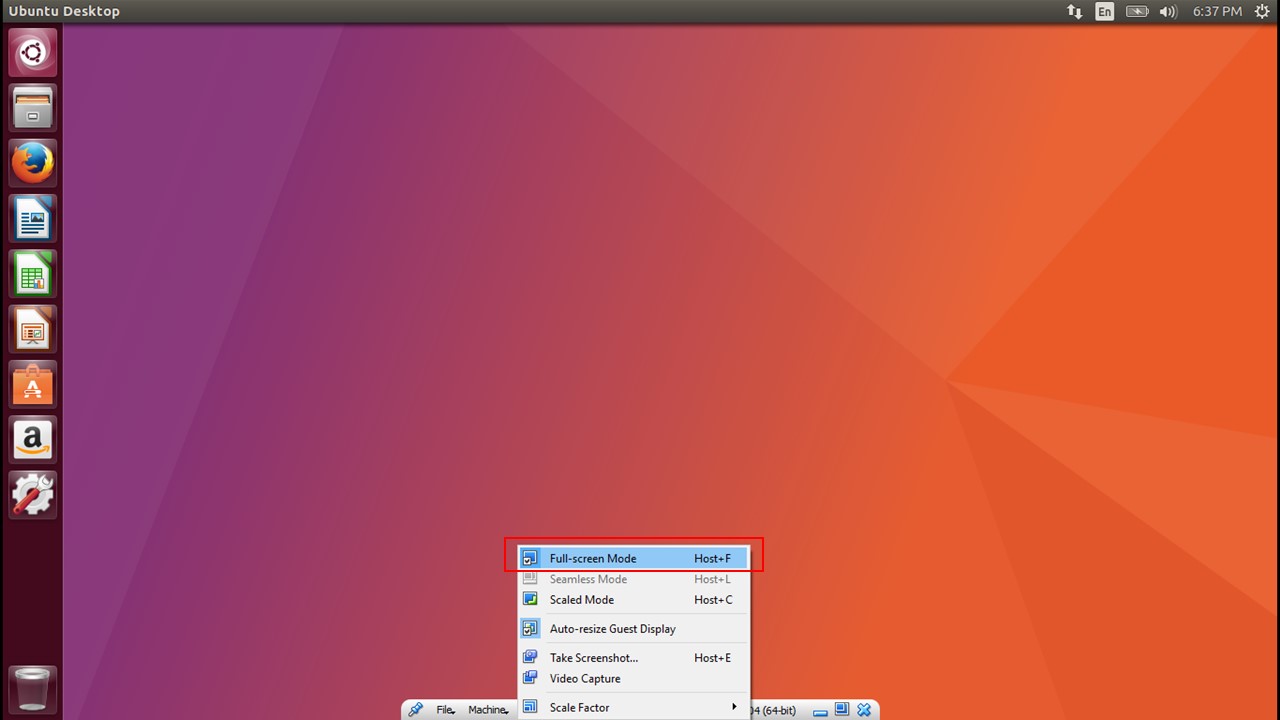
NOTE :
IT’S GREAT TO WORK ON WINDOWS & UBUNTU SIDE-BY-SIDE
 Why Surf Swim
Leave a comment